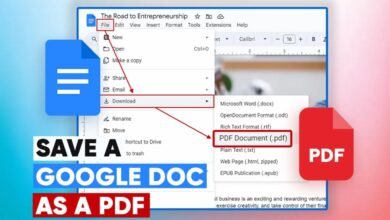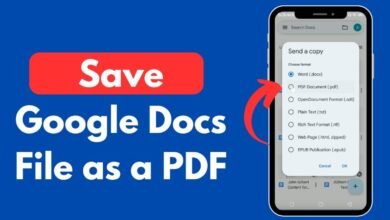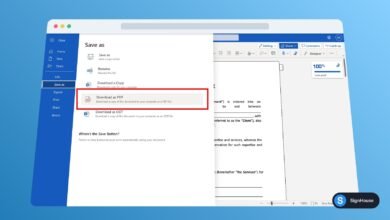
If you want to know how to insert PDF into Google Doc, there are several simple ways to do it. Google Docs does not normally allow you to insert a PDF file directly into a document as an editable file, but you can still add PDF content using links, images, or conversion.
The best method depends on what you want to do with the PDF. If you only want people to open the PDF, adding a link is usually the easiest option. If you need to edit the PDF’s text, converting it to Google Docs may be more useful.
In this guide, we’ll explain the easiest ways to insert a PDF into Google Docs.
Can You Insert a PDF Directly Into Google Docs?
Google Docs does not provide a standard option to insert a PDF as an editable object inside a document.
However, you can work with PDF files in several ways:
- Add a link to the PDF.
- Convert the PDF into Google Docs.
- Insert PDF pages as images.
- Upload the PDF to Google Drive and link to it.
- Convert PDF content before adding it to your document.
Let’s look at each option.
Method 1: Add a PDF Link to Google Docs
Adding a link is one of the easiest ways to include a PDF in a Google Doc.
Step 1: Upload Your PDF to Google Drive
Open Google Drive and upload the PDF file you want to add to your document.
After the upload finishes, right-click the PDF and choose the option to share or copy its link.
Step 2: Set the Sharing Permission
Check the PDF’s sharing settings. If other people need to access the file, make sure they have the appropriate permission.
Step 3: Add the Link to Your Google Doc
Open your Google Doc and select the text where you want the link.
Click the Insert link option and paste the PDF’s Google Drive link.
You can use text such as View PDF, Open PDF, or Download PDF instead of displaying a long URL.
Method 2: Convert the PDF to Google Docs
If your goal is to edit the content of the PDF, you can try converting it into an editable Google Docs file.
Step 1: Upload the PDF to Google Drive
Upload your PDF to Google Drive.
Step 2: Open the PDF With Google Docs
Right-click the PDF and select Open with > Google Docs.
Google Drive will create a new Google Docs file from the PDF.
Step 3: Edit the Converted Document
Once the PDF has been converted, you can edit the text and make changes like a normal Google Doc.
Keep in mind that complex PDF layouts may not convert perfectly. Tables, images, columns, fonts, and spacing may require manual adjustments.
Method 3: Insert PDF Pages as Images
If you want a PDF page to appear visually inside your Google Doc, you can convert the page into an image first.
After converting the PDF page to an image, open your Google Doc and select:
Insert > Image
Choose the image from your computer or Google Drive.
You can then resize the image and position it wherever you want in the document.
This method is useful when you want to display the original appearance of a PDF page rather than edit its text.
Method 4: Keep the PDF in Google Drive
You do not always need to place the entire PDF inside your Google Doc.
Instead, you can keep the PDF in Google Drive and add a link to it from your document.
For example:
Read the full PDF
Highlight the text and add the Google Drive link.
When someone clicks the link, they can open the original PDF separately.
How to Insert a PDF Into Google Docs Without Losing Formatting
If formatting is important, converting the PDF directly into Google Docs may change the document’s appearance.
PDFs can contain complex layouts, custom fonts, tables, graphics, and columns. These elements may not transfer perfectly during conversion.
If you want to preserve the appearance of the PDF, adding a link or inserting PDF pages as images may be a better option.
If you need editable text, convert the PDF and then review the formatting manually.
Can You Insert a Scanned PDF Into Google Docs?
Yes, but scanned PDFs can be more difficult to edit because they often contain images rather than selectable text.
To make scanned text editable, you may need OCR (Optical Character Recognition). OCR technology recognizes text inside images and converts it into editable text.
The accuracy of OCR depends on the quality of the scanned PDF, the font, and the clarity of the pages.
Which Method Is Best?
The best option depends on your purpose:
| What You Need | Best Method |
|---|---|
| Share the PDF | Add a PDF link |
| Edit the PDF text | Convert PDF to Google Docs |
| Display a PDF page | Insert it as an image |
| Preserve the original PDF | Store it in Google Drive and link it |
| Edit a scanned PDF | Use OCR |
Frequently Asked Questions
How do I insert a PDF into Google Doc?
You can upload the PDF to Google Drive and add its link to your Google Doc. If you need editable content, open the PDF with Google Docs to convert it.
Can I insert a PDF directly into Google Docs?
Not normally as an editable PDF object. You can instead add a link, convert the PDF, or insert its pages as images.
Can I edit a PDF inside Google Docs?
Yes. You can open certain PDFs with Google Docs to convert their content into an editable document. Formatting may change during the conversion.
How do I add a PDF link to Google Docs?
Upload the PDF to Google Drive, copy its shareable link, and add the link to selected text in your Google Doc.
Can I insert a PDF page as an image?
Yes. Convert the PDF page to an image and use Insert > Image in Google Docs to add it to your document.
Conclusion
Knowing how to insert PDF into Google Doc can help you work with PDF files more efficiently. Although Google Docs does not normally allow you to insert a PDF directly as an editable object, you have several practical alternatives.
For simple sharing, add a link to the PDF. For editing, convert the PDF to Google Docs. If you need to show the original appearance of a PDF page, convert it to an image and insert it into your document.
Choose the method that best matches your needs and review the final document to make sure everything looks correct.