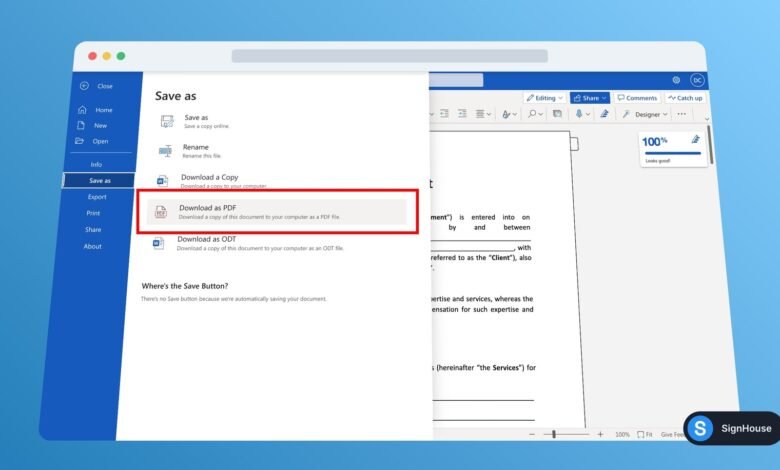
If you want to know how to make a Word doc a PDF, you can easily convert a Microsoft Word document into a PDF in just a few steps. PDF is one of the most popular file formats for sharing documents because it helps preserve the original layout and formatting.
Whether you have a DOC or DOCX file, you can convert it to PDF using Microsoft Word, an online converter, or the print-to-PDF option available on most modern computers.
In this guide, we’ll explain the easiest ways to make a Word document into a PDF.
Why Convert a Word Doc to PDF?
Word documents are designed for editing, while PDF files are better suited for sharing and printing.
Converting a Word document to PDF can help you:
- Keep the document’s formatting consistent
- Share files more easily
- Prevent accidental editing
- Create professional documents
- Prepare files for printing
- Submit assignments, applications, and reports
PDF files can also be opened on most computers, smartphones, and tablets without requiring the same version of Microsoft Word.
How to Make a Word Doc a PDF in Microsoft Word
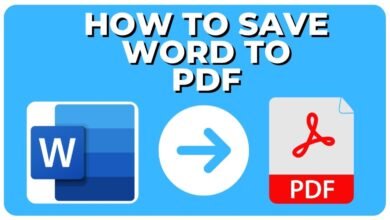
The easiest way to convert a Word document is to use Microsoft Word’s built-in PDF feature.
Step 1: Open Your Word Document
Open the DOC or DOCX file you want to convert.
Review the document and make sure the text, images, tables, and page layout are correct.
Step 2: Click File
Click File in the top-left corner of Microsoft Word.
A menu with several options will appear.
Step 3: Select Save As
Choose Save As and select where you want to save the new file.
Step 4: Choose PDF
In the Save as type or file format menu, select PDF.
You can also change the file name if needed.
Step 5: Click Save
Click Save.
Microsoft Word will create a PDF version of your document. Your original Word file will remain available as an editable document.
How to Convert Word to PDF Using Export
Some versions of Microsoft Word have an Export option.
Open your document and select:
File > Export > Create PDF/XPS
Choose the location where you want to save the PDF and confirm the export.
This is another quick way to turn a Word document into a PDF.
How to Make a Word File a PDF Using Print
You can also use the print function to create a PDF.
Open your Word document and select File > Print.
Choose a PDF printer, such as Microsoft Print to PDF on Windows, instead of a physical printer.
Select the pages and other print settings you need, then click Print.
Choose where you want to save the PDF file.
This method is useful if you only want to convert certain pages from a Word document.
How to Convert Word to PDF Online
If you don’t have Microsoft Word installed, you can use an online Word-to-PDF converter.
The general process is:
- Open a trusted Word-to-PDF converter.
- Upload your DOC or DOCX file.
- Start the conversion.
- Wait for the process to finish.
- Download the PDF.
- Open the PDF and check the formatting.
An online converter can be convenient when you need to convert a Word file quickly from a computer or mobile device.
DOC vs. DOCX: Can Both Be Converted to PDF?
Yes. Both DOC and DOCX files can be converted to PDF.
DOC is the older Microsoft Word file format, while DOCX is the newer format used by modern versions of Word.
Regardless of which format you have, you can usually convert the document to PDF using Microsoft Word or an online conversion tool.
How to Make Sure Your PDF Looks Correct
After converting your Word document, open the PDF and check it carefully.
Pay attention to:
- Text and headings
- Images
- Tables
- Page breaks
- Fonts
- Margins
- Headers and footers
- Page numbers
- Links
Complex documents may sometimes have small formatting differences after conversion, so checking the final PDF is always a good idea.
Frequently Asked Questions
How do I make a Word doc a PDF?
Open the Word document, select File > Save As, choose PDF as the file type, and click Save.
Can I convert a Word document to PDF for free?
Yes. Microsoft Word includes a built-in option for saving documents as PDF. You can also use online Word-to-PDF conversion tools.
Can I convert DOCX to PDF?
Yes. DOCX files can be converted to PDF using Microsoft Word, the print-to-PDF function, or an online converter.
Does converting Word to PDF delete my Word file?
No. Saving or exporting a Word document as a PDF normally creates a separate PDF file. Your original Word document remains editable.
Can I convert only part of a Word document to PDF?
Yes. You can use the print option and select a specific page range before saving the output as a PDF.
Will Word formatting stay the same in PDF?
PDF conversion generally preserves the original Word document’s formatting, but complicated layouts may need to be checked after conversion.
Conclusion
Learning how to make a Word doc a PDF is easy and useful for sharing, printing, and submitting documents. Microsoft Word provides built-in options such as Save As, Export, and Print to PDF, so you can convert your file without additional software.
If you don’t have Microsoft Word, an online Word-to-PDF converter can also help you quickly turn a DOC or DOCX file into a PDF.
After conversion, open the PDF and check the formatting before sharing it to make sure everything looks correct.