If you are wondering how do I save a Google Doc as a PDF, the good news is that you can do it in just a few steps. Google Docs includes a built-in option that allows you to download your document as a PDF file without using additional software.
Saving a Google Doc as a PDF is useful when you want to share a document while keeping its formatting, print a document, submit an assignment, or send a professional file by email.
In this guide, we’ll show you how to save a Google Doc as a PDF on a computer and explain a few other useful options.
How to Save a Google Doc as a PDF on a Computer
The easiest way to save your Google Doc as a PDF is to download it directly from Google Docs.
Step 1: Open Your Google Doc
Open Google Docs and select the document you want to save as a PDF.
Before downloading it, check your document carefully. Make sure the text, images, headings, tables, and page layout look correct.
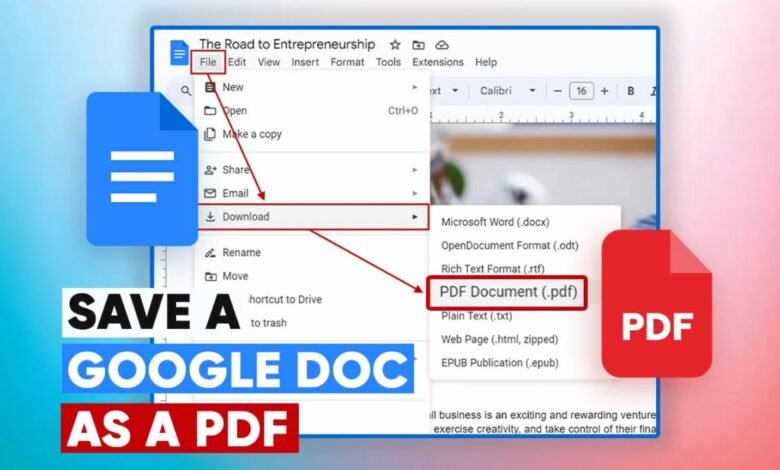
Step 2: Open the File Menu
At the top of Google Docs, click File.
A menu with several options will appear.
Step 3: Select Download
Move your cursor to Download.
Google Docs will display several file formats that you can use to download your document.
Step 4: Choose PDF Document
Select PDF Document (.pdf) from the list.
Google Docs will convert your document into a PDF and download the file to your computer.
Depending on your browser settings, the PDF will usually appear in your computer’s Downloads folder.
How to Save a Google Doc as a PDF Without Downloading It
If you do not want to download the document using the normal download option, you can also use the print function.
Open your Google Doc and select File > Print.
Your computer’s print window will open. Select Save as PDF as the printer or destination, then choose where you want to save the file.
This method is useful when you want more control over printing settings, such as page range, paper size, margins, or layout.
How to Save a Google Doc as a PDF on Mobile
You can also save a Google Doc as a PDF using the Google Docs mobile app.
Open the document in the Google Docs app and open the document menu. Look for the Share & export option and select the option to save or export the document.
Choose PDF as the file format and follow the instructions on your device.
The exact steps may vary slightly depending on whether you are using an Android phone or an iPhone.
Why Save a Google Doc as a PDF?
There are several advantages to saving a Google Doc as a PDF.
Preserve Formatting
PDF files are designed to maintain the appearance of a document across different devices and operating systems.
Easy to Share
PDF files are widely supported, making them convenient for sending through email, messaging apps, and other platforms.
Good for Printing
PDF files are commonly used for printing because the page layout is usually preserved.
Professional File Format
PDF is a standard format for resumes, reports, invoices, applications, assignments, forms, and business documents.
What Happens When You Download a Google Doc as a PDF?
When you choose PDF Document (.pdf) from the Google Docs download menu, Google creates a PDF version of your document.
Your original Google Doc remains unchanged. You can continue editing the original document while using the PDF as a separate copy.
This means you can safely create a PDF without losing your editable Google Docs version.
How to Check Your PDF After Saving
After downloading the PDF, open it and check the document before sending or submitting it.
Pay particular attention to:
- Page breaks
- Headings
- Images
- Tables
- Fonts
- Spacing
- Margins
- Headers and footers
- Links
Checking the PDF can help you catch formatting problems before sharing the file.
Frequently Asked Questions
How do I save a Google Doc as a PDF?
Open your Google Doc, click File > Download > PDF Document (.pdf). Google Docs will create a PDF and download it to your computer.
Can I save a Google Doc as a PDF for free?
Yes. Google Docs provides a built-in option to download your document as a PDF without requiring a separate PDF converter.
Where does my Google Docs PDF go?
The PDF will normally be saved in your computer’s Downloads folder unless your browser is configured to ask you where to save downloaded files.
Can I save only certain pages of a Google Doc as a PDF?
Yes. You can use the print option and select specific pages before choosing Save as PDF.
Will my Google Doc formatting stay the same in PDF?
Google Docs generally preserves the document’s formatting when exporting to PDF, but it is always a good idea to open and review the PDF before sharing it.
Can I convert a Google Doc to PDF on my phone?
Yes. The Google Docs mobile app provides options to export or share documents in PDF format. The exact steps may vary slightly depending on your device.
Conclusion
If you were searching for how do I save a Google Doc as a PDF, the process is simple. On a computer, open your document, select File > Download > PDF Document (.pdf), and Google Docs will create your PDF.
You can also use the print option and choose Save as PDF when you need additional control over the output.
Saving Google Docs as PDF is a convenient way to preserve your document’s layout, share it with others, and prepare it for printing or submission.