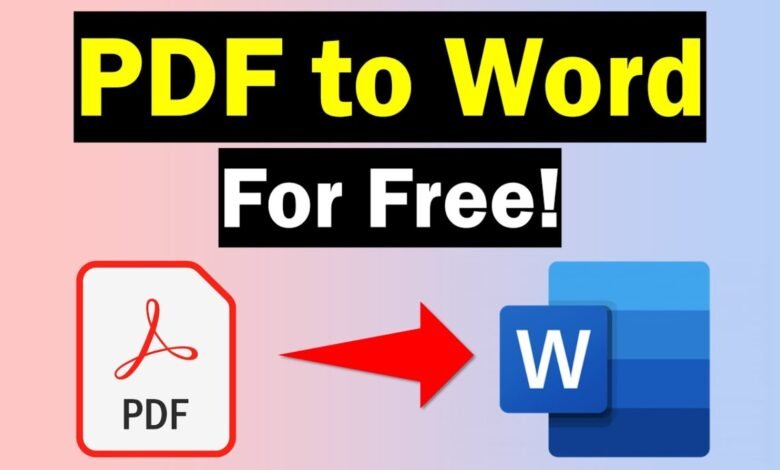
If you have a PDF file that you need to edit, you may be wondering how to make a PDF into a Word doc. Converting a PDF to a Word document is a simple way to make text, images, tables, and other content easier to edit.
A PDF is designed to keep a document’s formatting consistent across different devices. However, editing a PDF can sometimes be difficult. Converting it to Microsoft Word allows you to make changes, add new information, correct mistakes, and customize the document more easily.
In this guide, we’ll explain several simple ways to convert a PDF to Word, including using an online PDF converter.
Why Convert a PDF to a Word Document?
There are several reasons you may want to turn a PDF into a Word document. For example, you may need to update a report, edit a resume, change information on a form, or reuse content from an existing PDF.
A Word document is easier to edit because you can change the text, adjust formatting, add images, and modify the layout without needing specialized PDF editing software.
Converting PDF to Word can also save time when you need to make significant changes to an existing document.
How to Make a PDF Into a Word Doc Online
One of the easiest ways to convert a PDF is by using an online PDF-to-Word tool.
Step 1: Choose a PDF to Word Converter
Open a reliable online PDF conversion tool such as DocPDF.shop. An online converter lets you convert your file without installing additional software on your computer.
Step 2: Upload Your PDF
Select the PDF file you want to convert. Depending on the tool, you can usually upload a file directly from your computer or device.
Make sure you select the correct PDF before starting the conversion.
Step 3: Start the Conversion
After uploading your file, choose the PDF to Word or PDF to DOCX option and start the conversion process.
The tool will process your PDF and create an editable Word document.
Step 4: Download the Word Document
Once the conversion is complete, download the resulting Word file. You can then open it using Microsoft Word or another compatible word-processing application.
You can edit the document, change the formatting, add content, or save it in another format.
How to Convert PDF to Word Without Losing Formatting
One common concern when converting a PDF to Word is formatting. Fonts, images, tables, spacing, and page layouts may not always transfer perfectly.
To get the best results, use a PDF-to-Word converter that is designed to preserve the original document structure.
It is also a good idea to review the converted document before using or sharing it. Check headings, tables, images, page breaks, and special characters to make sure everything looks correct.
Can You Convert a Scanned PDF to Word?
Yes, but scanned PDFs may require OCR (Optical Character Recognition) technology.
A normal PDF may contain selectable text, while a scanned PDF is often made up of images of pages. OCR can recognize the text inside those images and turn it into editable content.
If your PDF is scanned, look for a conversion tool that supports OCR. The accuracy can depend on the quality of the original scan, the font, the page layout, and image clarity.
PDF to Word vs. Copy and Paste
You could manually copy text from a PDF and paste it into Microsoft Word, but this method may not preserve the original formatting.
Converting the entire PDF to Word is usually more convenient when the document contains multiple pages, tables, images, or complex formatting.
Instead of copying content page by page, a PDF converter can process the document and create an editable Word file in a much shorter time.
What Is the Difference Between DOC and DOCX?
When converting a PDF, you may see options for DOC or DOCX.
DOC is an older Microsoft Word document format. DOCX is the newer Word format and is widely supported by modern versions of Microsoft Word and other word-processing applications.
For most users, DOCX is a good choice because it is the current standard Word document format.
Tips for Converting PDF to Word
Keep these tips in mind when converting a PDF:
- Use a trusted PDF conversion tool.
- Check the converted document for formatting errors.
- Review tables and images after conversion.
- Use OCR when working with scanned PDFs.
- Choose DOCX when you need a modern Word format.
- Avoid uploading sensitive documents to services you do not trust.
- Keep the original PDF until you have confirmed that the Word version is correct.
Frequently Asked Questions
Can I turn a PDF into an editable Word document?
Yes. You can use a PDF-to-Word converter to turn many PDF files into editable Word documents. The result may depend on the PDF’s formatting and whether the file contains selectable text or scanned images.
What is the easiest way to convert PDF to Word?
Using an online PDF-to-Word converter is usually one of the easiest methods. Upload your PDF, start the conversion, and download the resulting Word document.
Can I convert PDF to Word for free?
Many online PDF converters offer free PDF-to-Word conversion, although limits may apply depending on the service, file size, or number of conversions.
Can I convert a scanned PDF into Word?
Yes. A scanned PDF can be converted into an editable Word document when the conversion tool supports OCR. Results may vary depending on the quality of the scanned document.
Will my PDF formatting stay the same after conversion?
A good PDF-to-Word converter can preserve much of the original formatting, but complex layouts, tables, fonts, and images may require some adjustments after conversion.
Conclusion
Knowing how to make a PDF into a Word doc can make editing and updating documents much easier. Instead of manually recreating a document, you can use a PDF-to-Word converter to create an editable Word file in just a few steps.
Whether you need to edit a report, update a resume, modify a form, or reuse information from a PDF, converting it to Word can save time and effort. After conversion, always review the document to make sure the text, formatting, images, and tables appear correctly.