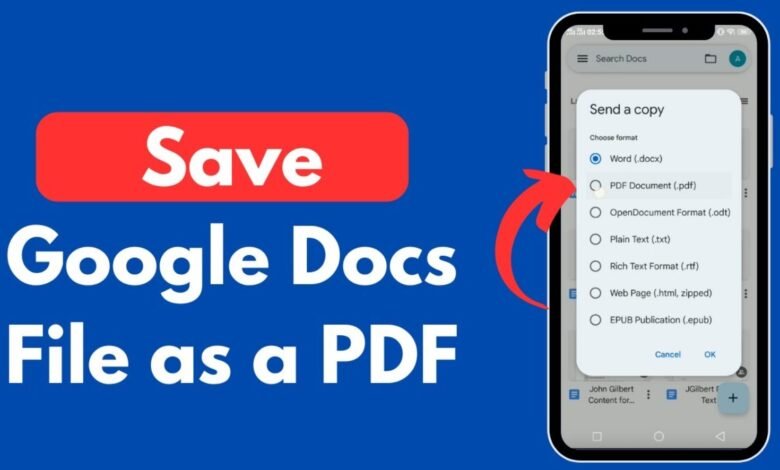
If you want to know how to save a Google Doc as a PDF, you can do it quickly using Google Docs’ built-in download option. You don’t need to install special software or use a separate converter.
Saving a Google Doc as a PDF is useful when you want to share a document, submit an assignment, send a report, print a file, or preserve its formatting.
In this guide, we’ll explain how to save a Google Doc as a PDF on a computer and mobile device, along with a few alternative methods.
Why Save a Google Doc as a PDF?
Google Docs is excellent for creating and editing documents online, but a PDF can be more convenient when you need to share the finished file.
Some common reasons to save a Google Doc as a PDF include:
- Keeping the document’s formatting consistent
- Sharing a document by email
- Printing a document
- Submitting assignments or applications
- Creating a professional copy of a report
- Sharing a file that should not be easily edited
How to Save a Google Doc as a PDF
The simplest way to save your Google Doc as a PDF is through the File menu.
Step 1: Open Your Google Doc
Open Google Docs and select the document you want to convert to PDF.
Before downloading it, check your document carefully. Make sure the text, images, tables, page breaks, and formatting look correct.
Step 2: Click File
At the top of the Google Docs page, click File.
A menu containing different document options will appear.
Step 3: Select Download
Move your cursor over Download.
Google Docs will display several available file formats.
Step 4: Choose PDF Document
Click PDF Document (.pdf).
Google Docs will automatically create a PDF version of your document.
Step 5: Find Your PDF
The PDF will normally be downloaded to your computer’s Downloads folder.
You can open the PDF with a PDF reader and check the document before sharing it.
How to Save a Google Doc as a PDF Using Print
Another way to save a Google Doc as a PDF is through the print option.
Open your document and select:
File > Print
Your computer’s print settings will appear.
Choose Save as PDF or a PDF printer, depending on your operating system and browser.
Select the location where you want to save the file and confirm the action.
This method can be useful when you want to save only specific pages or adjust printing settings.
How to Save a Google Doc as a PDF on Mobile
You can also save or export a Google Doc as a PDF using the Google Docs mobile app.
Open the document in the app and access the document menu. Look for Share & export and select the option to save or send the document in another format.
Choose PDF as the format and follow the instructions on your device.
The exact steps can vary slightly between Android and iPhone.
How to Save Only Certain Pages as a PDF
If you don’t want to save the entire Google Doc, you can use the print option.
Choose File > Print and look for the page range settings. Enter the pages you want to save, then select Save as PDF.
This allows you to create a PDF containing only selected pages from your document.
Does Saving a Google Doc as PDF Change the Original?
No. Downloading your Google Doc as a PDF creates a separate file.
Your original Google Doc remains available in Google Drive, so you can continue editing it whenever you want.
This makes it safe to create a PDF copy while keeping the original editable document.
How to Check Your PDF After Saving
After creating your PDF, open it and check the following:
- Text and headings
- Images
- Tables
- Page breaks
- Margins
- Headers and footers
- Page numbers
- Links
- Overall formatting
Reviewing the PDF before sharing it can help you identify any formatting issues.
Frequently Asked Questions
How do I save a Google Doc as a PDF?
Open the Google Doc, click File > Download > PDF Document (.pdf). The PDF will then download to your computer.
Can I save a Google Doc as a PDF for free?
Yes. Google Docs has a built-in PDF download option, so you can save a document as a PDF without paying for a separate converter.
Where is my Google Docs PDF saved?
The PDF is usually saved in your computer’s Downloads folder. Your browser may use a different location if you have changed its download settings.
Can I save a Google Doc as a PDF on my phone?
Yes. The Google Docs mobile app provides options for exporting documents as PDF files. The exact steps may differ depending on your device.
Can I save specific pages of a Google Doc as PDF?
Yes. Use the print option, select the pages you need, and choose Save as PDF.
Will my Google Doc look the same as a PDF?
Google Docs generally preserves the document’s layout when exporting to PDF. However, you should always review the final PDF to make sure everything appears correctly.
Conclusion
Learning how to save a Google Doc as a PDF is simple and takes only a few steps. On a computer, open your document, select File > Download > PDF Document (.pdf), and Google Docs will create a PDF copy.
You can also use the print option when you need to save specific pages or adjust print settings.
Whether you’re sharing a report, submitting an assignment, creating a resume, or preparing a document for printing, saving Google Docs as PDF is a quick way to create a professional and easy-to-share file.